



Fast Internet but Slow Streaming: What Causes It
You ran a speed test. The results looked great. But Netflix is buffering, YouTube won’t stop turning to mush, and your streaming game froze right at the end of the game-winning play. If you’ve got internet speed but slow streaming, you’re not alone.
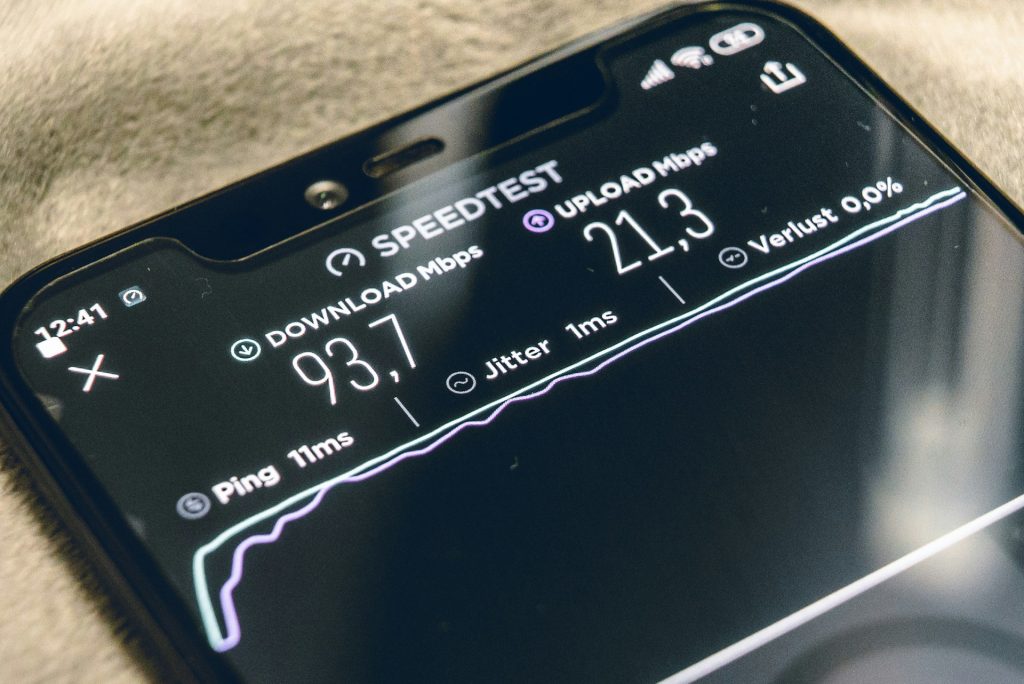
Your internet speed test doesn’t actually test your streaming speed. It tests only one thing: how quickly data can move between your device and the test server right now. Wireless signal strength, router issues, packet loss, or problems with the streaming provider can all interfere with your stream even if your internet plan offers more than enough bandwidth.
The short version: slow streaming can be caused by weak WiFi, network congestion, latency, packet loss, old equipment, slow devices, buggy apps, or problems with your streaming provider’s servers. But if you want the long version, read on for the 12 most common causes, plus how to pinpoint yours quickly.

Why Is My Streaming Slow With Fast Internet?
Streaming video isn’t a single spike in data usage, but a constant flow that needs to stay up for the entire length of the video. A speed test can promise gigabit speeds while your videos keep dropping out, because if your WiFi disconnects for a few seconds at a time or your router can’t keep up with your household’s demands, streaming will suffer no matter how fast your plan is.
Internet speed is made up of a few related factors:
- The speed of your internet plan (the speed you pay for)
- The speed that actually reaches your router
- The WiFi speed that reaches your device
- The bandwidth remaining after every other device on your network has done its thing
- The performance of the streaming service itself right now
- The performance of your streaming device and apps
Internet speed is fast but videos are buffering no matter what you try is one of the most common complaints out there.
Check These Four Things Before Troubleshooting
Before diving into settings or restarting equipment, take two minutes to rule out the most obvious problems.
- Try another streaming service: Buffering from one service points to that service or device.
- Try the same video on another device: If it works fine elsewhere, something’s wrong with that device.
- Move closer to your router or plug into Ethernet: Improvement points to WiFi strength.
- Run speed tests on both your phone and a wired computer: Comparing the two tells you whether WiFi or something upstream is to blame.
| What You Observe | Most Likely Area to Investigate |
| One app buffers | Streaming service or app |
| One device buffers | Device, WiFi adapter, or settings |
| One room buffers | WiFi coverage |
| All devices buffer | Router, congestion, or internet connection |
| Buffering only at night | Household or provider congestion |
| Wired devices stream fine | WiFi issue |
| Speed tests fluctuate | Interference, congestion, or connection instability |
Once you know the general source of the problem, these 12 causes (and solutions) will help you narrow down the exact issue.
1. Your WiFi Signal Is Weak
Your internet connection can arrive at gigabit speeds while the WiFi signal reaching your phone, tablet, TV, or streaming box is a weak trickle. Distance from the router, walls, floors, appliances, and metal surfaces can all degrade signal strength.
Place your router in a central, open, elevated spot instead of a cabinet or closet, then test streaming near it. If it improves dramatically, move the router closer to your streaming device or vice versa.
In a particularly large house, a house with multiple floors, or an unusually-shaped layout, a mesh WiFi system or additional access points can improve coverage. Learn more about how to improve your internet signal throughout the home.
2. WiFi Interference Is Disrupting the Stream
WiFi doesn’t exist in isolation. Networks next door interfere with yours, as do Bluetooth connections, microwaves, and baby monitors. The 2.4 GHz band covers more distance but gets bogged down easily, while 5 GHz offers more throughput at a shorter range. A newer 6 GHz band is even less congested but isn’t available on all devices yet.
Switching bands or channels can help. Move your router away from interfering electronics, upgrade to newer equipment, or plug your streaming device into Ethernet. For more on finding and resolving interference, read how to reduce WiFi interference.
3. Too Many Devices Are Streaming at Once
There’s still a hard limit on your total bandwidth. Streaming videos, downloads, overnight cloud backups, video calls, security cameras, and smart-home devices can all chew through it without you noticing, leaving less capacity for your streams.
Pause large downloads or backups before you start streaming, disconnect idle devices, and check your router’s connected device list. If your home constantly demands heavy bandwidth from multiple devices at once, see these tips to optimize internet for multiple devices. Note that Quality of Service settings are router-dependent, so check your manufacturer’s documentation.

4. Your Router or Gateway Needs Restarting
Routers are tiny computers, and like any computer, they can develop glitches and memory issues over time. Restarting clears that and forces the router to re-establish clean connections.
Unplug your router (and any modem or networking equipment connected to it) and wait at least half a minute before plugging it back in. Wait another minute or two for the network to come back up, then test your stream again.
This isn’t the same as a factory reset, which wipes your network name, password, and any custom settings. Restart without resetting unless a technician instructs you otherwise.
5. Your Router, Streaming Device, or TV Is Old
An outdated router might not support the speeds you’ve got, or it might struggle with as many devices as your household needs. The same goes for your smart TV or streaming box – weak wireless adapters, slow processors, and poor codec support can bottleneck your streams.
Double-check that your router supports your current internet speed and that your router and streaming device are running up-to-date firmware. If your streaming device is several years old, it might be time for an upgrade.
If you’re on the fence about whether newer WiFi standards can improve your network’s streaming performance, WiFi 6 vs. WiFi 7 breaks down everything that’s changed in each standard.
6. The Streaming App Itself Has a Problem
Your network may be perfectly fine, so the issue might be with the streaming app itself. Apps can become outdated, or something in their code got corrupted during an update, causing stutters or crashes on just one device.
Close out the app entirely and restart it. If that doesn’t work, power off your streaming device before restarting it, or check for app updates in your app store.
If you’re only seeing buffering on Netflix or YouTube, check that service’s status page to see if they’re having issues.

7. Your Streaming Provider Is Overloaded or Down
Every video file has to travel from the provider’s servers, through content delivery networks, and across the internet before reaching your device. Just like your home network can get overloaded, the networks providing those streams can too, and you have no control over that.
High-traffic live events like sports or viral releases can tax these networks at the worst possible moment. Try streaming a different video or service, see if other users are having trouble, and wait it out. A speed test can’t prove everything’s fine on the provider’s end.
8. Your Video Quality Is Set Too High
4K streaming requires more bandwidth than Full HD or standard definition, and many apps default to the highest quality possible no matter how slowly it buffers.
Drop down to standard definition if your stream is stuttering, turn off fancy video features your TV supports, and make sure nothing else on your network is downloading in the background.
Here’s the general internet speed needed for 4K streaming and other quality tiers (verify with your streaming provider, as demands change over time):
| Video Quality | Approx. Speed Needed Per Stream | Things to Consider |
| SD | Low | Watchable on small screens |
| HD | Moderate | Account for multiple streamers |
| Full HD | Moderate to high | Good WiFi connection becomes more important |
| 4K/UHD | High | Wired connections recommended |
| Multiple 4K streams | Very high | You need a lot of bandwidth to share |
9. High Latency, Jitter, or Packet Loss Is Impacting Performance
Download speed isn’t the only measurement that matters. Latency is how long data takes to travel across your network. Jitter is how much latency fluctuates over time. Packet loss is data that never makes it to you and must be resent.
Streaming services build in buffers to smooth out jitter and latency, but high levels of either can overwhelm that buffer and force quality reductions or interruptions.
Test your latency, jitter, and packet loss several times throughout the day – results should consistently be under 100ms. Try a wired connection if you normally use WiFi, and check your cables for physical damage. Contact your provider if packet loss or high latency shows up on multiple devices. Learn more about how latency affects online performance.
10. A VPN, Security Software, or Custom DNS Setting Is Adding Latency
A VPN causing slow streaming is more common than you’d think. VPNs encrypt your traffic and bounce it through an intermediary server, adding distance and overhead that can slow your connection. Security software, content filters, and custom DNS settings can affect speeds in similar ways.
Disconnect your VPN temporarily to see if your stream clears up. If it does, try a server closer to you geographically, update your VPN software, and return any custom network settings to their defaults.
Don’t permanently disable virus protection just to test this – it’s only a diagnostic step.

11. Streaming Problems During Peak Hours
Congestion can happen inside your home, where devices compete for the same connection, or outside it, where every customer shares the same infrastructure (congestion that tends to hit during evening peak hours). Cable, satellite, cellular, and fixed wireless networks can only bring you so much additional bandwidth during those hours, while wired connections don’t suffer the same way because the connection into your home is dedicated.
Run speed tests at different times of day. If buffering happens regularly between the same hours, you may be a victim of evening congestion. Fiber internet vs. 5G home internet: which is more reliable? compares how different connection types perform under congestion.
No home network is immune to outages or congestion brought on by provider-level problems.
12. Your Speed Test Isn’t Accurate
Streaming on a brand-new phone held right next to your wireless router will give you wildly different results than streaming on your television across the house. The server you test against, the device you use, which WiFi band you connect to, active VPN connections, and how many other devices are online can all impact your results.
Go beyond a single speed test:
- Test on the device that’s experiencing problems, if possible
- Test near your router and in the room you normally stream in
- Test over both Ethernet and WiFi
- Test at multiple times of day, with any VPN turned off and no downloads running
Record download speed, upload speed, latency, and the time of each test. Comparing results helps you spot patterns a single test can’t.
How to Stop Buffering When Streaming: The Right Order
Work through these steps from least disruptive to most:
- Stream a different video on a different app using a different device.
- Restart the app and streaming device.
- Restart the router/modem.
- Move closer to your router.
- Pause downloads, backups, and other streams.
- Lower the video resolution.
- Update apps, device software, and router firmware.
- Hook your TV or streaming device up to Ethernet.
- Improve your router placement/WiFi coverage.
- Test your speeds throughout the day and compare wired to wireless performance.
- See if you’re dealing with an internet service outage.
- Contact 24-7 & West Wisconsin Telcom if the issue persists across multiple devices and services or affects your wired connection as well.

Ethernet vs WiFi for Streaming: Which Is Better?
Ethernet creates a dedicated physical connection between your router and streaming device, meaning that everything that can go wrong with WiFi can’t affect you.
It isn’t a magic solution, though. It won’t fix problems with your streaming service’s servers, and you’re still stuck with any slow devices or inadequate internet plans.
If your streaming device has an Ethernet port and it’s practical to plug in a cable, including smart TVs, gaming consoles, desktop PCs, and streaming boxes, use it first to see if problems persist over a wired connection.
Do You Need Faster Internet or Better WiFi?
If streaming slows when everyone’s online, your wired connection maxes out as expected, and the problem stops when downloads pause, you probably need a faster plan.
If wired devices have no problems, performance changes by location, and only wireless devices are affected, you probably need better WiFi.
Getting more bandwidth without fixing WiFi coverage will only leave you paying more for a connection you can’t use.
Read More: How Much Faster Is an Ethernet Connection Than the Best WiFi

Why Fiber Internet For Streaming Works
Of all the home networking technologies, fiber offers the most capacity, lowest latency, and day-to-day consistency. Fiber is a great choice if your household routinely uses multiple streams while gaming, working from home, and running smart-home devices all at once.
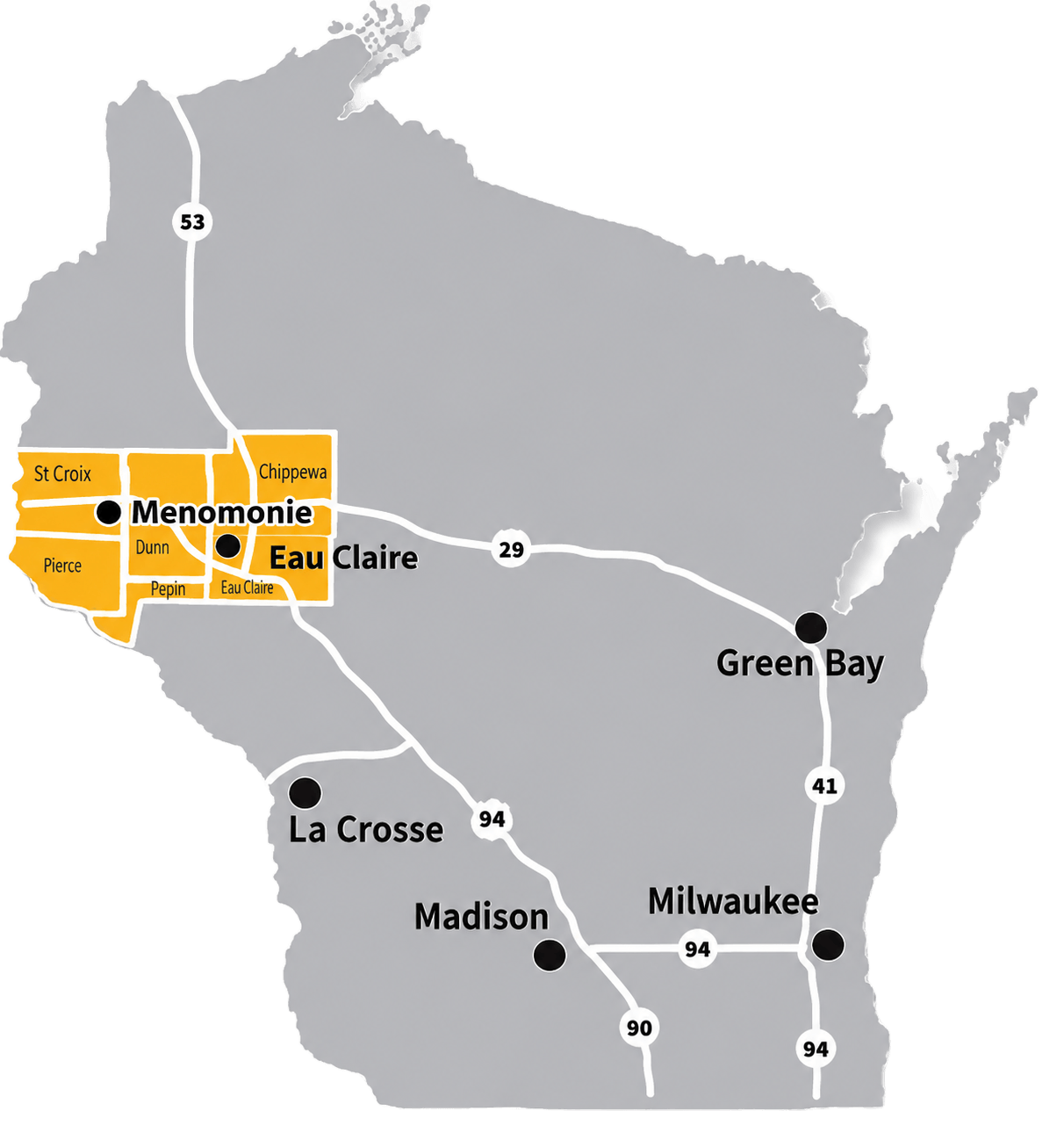
Faster doesn’t always mean better, though. Poor WiFi signal strength, old equipment, overloaded routers, and outages on your provider’s end can still impact your stream even on fiber. If you live in our service area, check out home internet in Western Wisconsin and choose your plan based on how many simultaneous streams your household uses.
Contact 24-7 & West Wisconsin Telcom if you live in our western Wisconsin service area, and choose your plan based on how many simultaneous streams your household uses.
When to Contact 24-7 & West Wisconsin Telcom
Contact our support team once you’ve eliminated the devices and services themselves as the issue. When streaming is still slow across multiple devices and your wired connection too, it’s time to call in the pros.
When you call, have any affected devices and app names on hand, along with the times of day you experienced buffering, your test results, and any troubleshooting steps you’ve already tried.
Frequently Asked Questions
Why is my internet fast but videos keep buffering?
Streaming is more complicated than a single speed test can account for. WiFi strength, congestion, latency, packet loss, slow devices, or problems with your streaming service can cause interruptions even if your download speed is fast.
Why is only my smart TV buffering?
Your TV might be further from your router, running an outdated WiFi adapter, or struggling with the app itself. Try Ethernet, move your router closer, update your TV’s software, or test the same content on a different device.
Why does my streaming buffer at night?
Peak hours add strain on your home network as every device competes for resources, and congestion on your streaming provider’s network at high-traffic times can impact your streams too.
Will a faster internet plan help with buffering?
If your home truly lacks enough bandwidth, a faster plan can help, but it won’t fix outdated WiFi, old devices, app issues, packet loss, or problems with your streaming service.
How Do I Know If My Router Is Causing Issues?
Test closer to your router. If your stream works fine there but not across your house, a weak WiFi signal, interference, or old equipment is likely the cause.
Is fiber internet better for streaming videos?
In most cases, yes. Fiber consistently offers more capacity, better latency, and more reliable speeds than most other connections. Slow WiFi, router issues, and outages on your provider’s end can still cause issues, though.
Why does one app buffer while others stream fine?
The app may need an update, something got corrupted in its cache, or the service is having problems with its own servers.
Get Consistent Streaming With the Right Connection and Home Network
Fast internet is only one part of the streaming puzzle. Smooth streaming depends on enough bandwidth, low latency, strong WiFi or Ethernet, modern equipment, and a working connection to your streaming provider.
Work through these steps before buying a new streaming box or bigger plan, and contact us if your whole household can’t stream smoothly no matter what you do. We’ll help western Wisconsin customers figure out what’s wrong and check fiber availability in their area, so internet speed but slow streaming never becomes your everyday reality.