


Boosting Internet Signal at Home: Router Placement, Ethernet, Extenders & More
Boosting internet signals at home is often easier than most people expect, and it usually starts before buying new equipment. There are many ways to improve the WiFi signal at home without replacing everything, as distance, walls, band selection, and router location can all affect weak WiFi in one room or dead spots at the edge of your house.
This guide covers how to fix weak WiFi starting with a few simple (and free) modifications, and working up to equipment upgrades only when necessary.
Why Your Internet Signal Is Strong in One Room but Weak in Another
Why the signal drops across a house
WiFi signals weaken as they travel. Every foot of distance reduces internet signal strength, and every obstacle in the path weakens it further. For instance, moving a router from the first floor to a bedroom on the second floor may involve going through concrete, insulation, and wood studs. Large appliances that are placed in the line of sight of your WiFi router can cause interference as well, such as refrigerators and washing machines.
Why your office may work better than your patio
Indoor spaces close to the router tend to get the strongest, most consistent signal. A back patio on the opposite end of the house is a different story, as the signal has to travel the full length of the home, pass through exterior walls (typically the thickest in the house), and continue into open air. Distance and dense building materials stack against outdoor connections in a way that most indoor rooms never experience, even with a fast, modern router.
Why “good internet” does not always mean “good WiFi”
There’s an important distinction between the speed coming into your home and the wireless signal reaching your devices. A fast plan won’t fix a slow WiFi experience if the signal degrades before it reaches the room you’re in. The first step toward diagnosing which problem you’re dealing with is to understand internet bandwidth bottlenecks.

Frequently Asked Questions
What is the best place to put a router in a house?
The best place for a router in a house is a central, elevated, open spot close to where you use the internet most.
Is 2.4 GHz or 5 GHz better for boosting internet signal?
It depends on the distance. The 2.4 GHz band travels farther and handles obstacles better, making it the right choice for distant rooms, patios, and basements. The 5 GHz band delivers faster speeds over shorter distances, making it better for a home office or living room near the router. See our full 2.4 GHz vs. 5 GHz breakdown for more detail.
Does moving a router really improve the internet signal?
Yes, and often dramatically. Moving a router from a corner room to a central hallway, or from the floor to a bookshelf, can extend signals into rooms that previously had little or none.
When should I use Ethernet instead of WiFi?
Ethernet is the better choice for fixed devices that need a consistent, high-speed connection, such as desktop computers, gaming consoles, smart TVs, and VoIP phones as it reduces wireless congestion.
Where should a WiFi extender be placed?
The extender needs to receive a strong signal from the router in order to rebroadcast effectively into the trouble zone, so halfway between the router and the weak signal area is the ideal location.
Is a WiFi extender enough for a large home?
Sometimes. A single extender works well for one defined problem area, like a far bedroom, patio, or garage. Homes with multiple dead zones or heavy usage spread across different floors may need a mesh WiFi system instead, which delivers more consistent whole-home coverage.

Step 1: Put Your Router and Modem in the Best Place
Placement is often the most affordable and effective way to boost the WiFi signal and improve coverage throughout your home. Router placement for better WiFi is the single highest-impact change most households can make.
Place your router near the center of the home
WiFi broadcasts in all directions. Moving it toward the center of your floor plan lets the signal reach every part of the house more evenly.
Think about where you actually use the internet
Modem and router placement both matter. Most routers end up near the cable entry point – often a utility room or back bedroom – but that’s rarely where people use the internet most. You could even run a longer Ethernet cable from the modem to a better-positioned router for an easy fix.
Keep the router elevated and out in the open
Place the router on a high shelf or desk rather than on the floor or inside a cabinet. Higher placement gives the signal a better path to travel and helps it reach upper floors more effectively.
Avoid placing the router behind furniture or near appliances
Large electronics, metal shelving units, enclosed furniture, and large appliances all block and reflect signals. Televisions, refrigerators, microwaves, and large fish tanks are usual suspects.
Step 2: Remove Obstacles That Block the WiFi Signal
Walls, floors, and building materials
Even with a well-positioned router, what sits between it and your device matters. Weak WiFi signals blocked by walls is one of the most common – and most underestimated – sources of poor coverage at home. Same with concrete, tile, and dense plaster walls which cut signal significantly more than standard drywall.
Furniture and electronics that interfere with the signal
Microwave ovens, baby monitors, and cordless phones emit the same 2.4 GHz frequency while they’re operating, which can lead to interference.
Why line of sight matters more than people think
The more objects between the router and the user, the weaker the signal can become.

Step 3: Choose the Right WiFi Band for the Area You Are Using
Most modern routers broadcast two wireless bands simultaneously. Choosing the right one for each room is a free way to improve performance throughout the home. Understanding 2.4 GHz vs 5 GHz is key to getting the most out of the network you already have.
When to use 2.4 GHz
The 2.4 GHz frequency will reach farther and penetrate walls and other objects easier. It’s also your best bet for improving your patio WiFi signal since your signal will have to go through exterior walls before reaching outdoor WiFi devices.
When to use 5 GHz
Connect devices to 5 GHz if they are in rooms near your router where speed is essential – like for streaming video, video calling, gaming, or if you have a home office close to your router. The 5 GHz band provides faster speeds, but experiences more slowdown with walls and distance.
How to decide which band is better in each room
Test both. Connect your laptop or phone to your 2.4 GHz network in one of your problem rooms, run a speed test, then repeat using 5 GHz. Whichever band gets faster, more consistent results should be your choice for that location. 5 GHz will usually perform better in neighboring rooms, while 2.4 GHz will perform better at greater distances or where more walls are between you and the router.
| Feature | 2.4 GHz | 5 GHz | Best For | Limitation |
| Range | Longer | Shorter | Far rooms, patios, basements | Slower max speeds |
| Speed | Moderate | Faster | Streaming, gaming, video calls | Loses speed through walls |
| Wall Penetration | Better | Weaker | Multi-wall layouts | More interference |
| Best Use | Distance and obstacles | Speed in closer rooms | Home offices near the router | Congested in dense areas |
Step 4: Use Ethernet Where It Makes the Most Sense
The biggest factor in deciding between Ethernet vs WiFi is one question: will this device need to move? Ethernet is going to give you a reliable connection unaffected by interference for any device that can be connected with a cable.
Best devices to connect with Ethernet
Ethernet works best for desktop computers, gaming consoles, smart TVs, printers, VoIP phones, and workstations that stay in one place.
Why Ethernet helps your WiFi too
Every device on your WiFi network competes for bandwidth. Moving high-demand devices to Ethernet frees up wireless bandwidth for everything else. If you need to boost the internet in a home office that’s far from the router, a wired connection is more reliable than trying to stretch WiFi across several rooms, and is more stable for video calls and low-latency applications.
When Ethernet is a better solution than moving the router
For a home office far from the router, a wired connection may be more reliable than trying to stretch WiFi through several rooms.
WiFi vs. Ethernet vs. Both – Decision Guide
| Use WiFi | Use Ethernet | Use Both |
| Phones and tablets | Desktop computers | Smart TVs with streaming apps |
| Laptops moving between rooms | Gaming consoles | Home offices with mixed devices |
| Smart home devices | VoIP phones | Households with many users |
| Guests and visitors | Workstations and NAS drives | Homes with specific dead zones |
Step 5: WiFi extender placement for Hard-to-Reach Areas
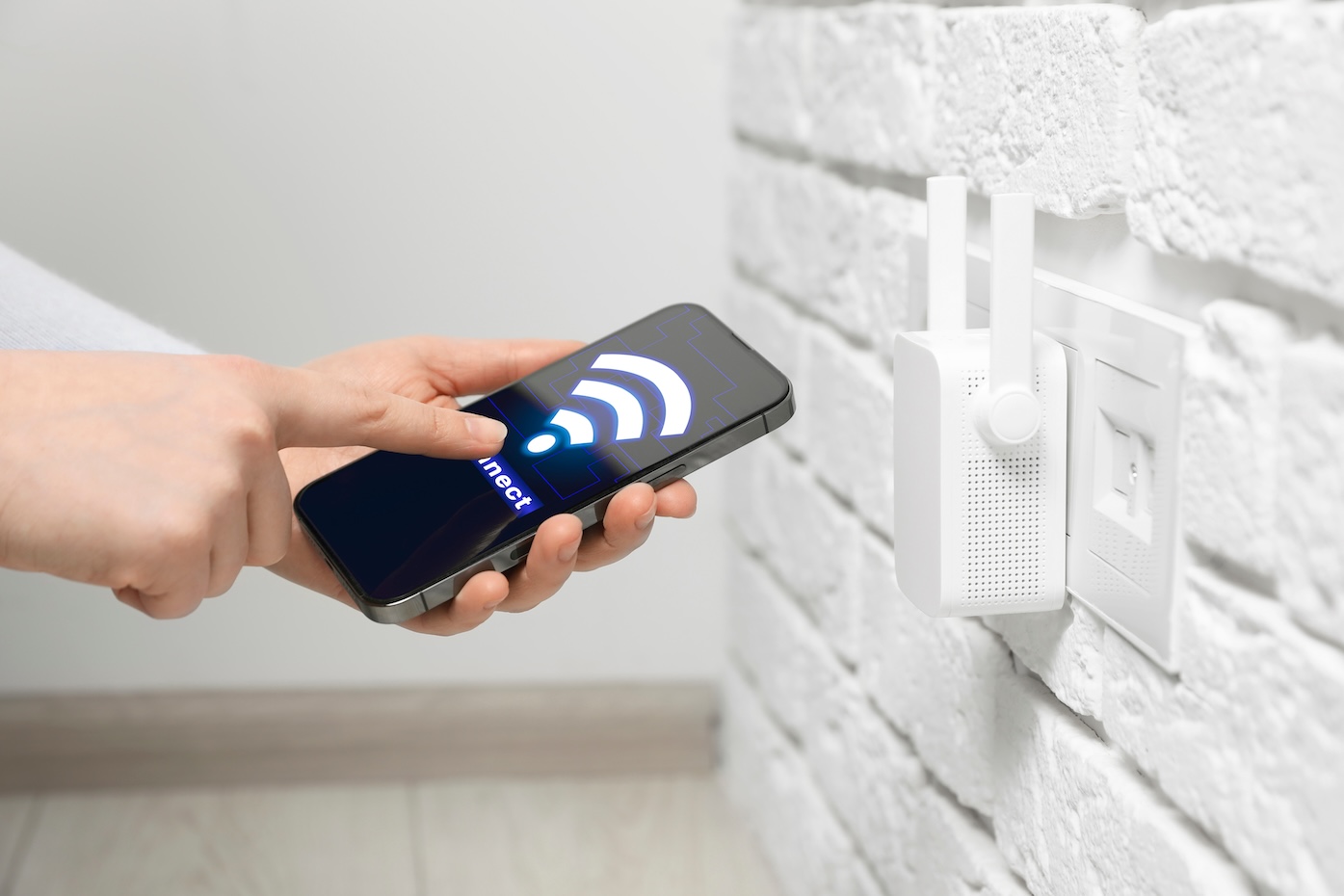
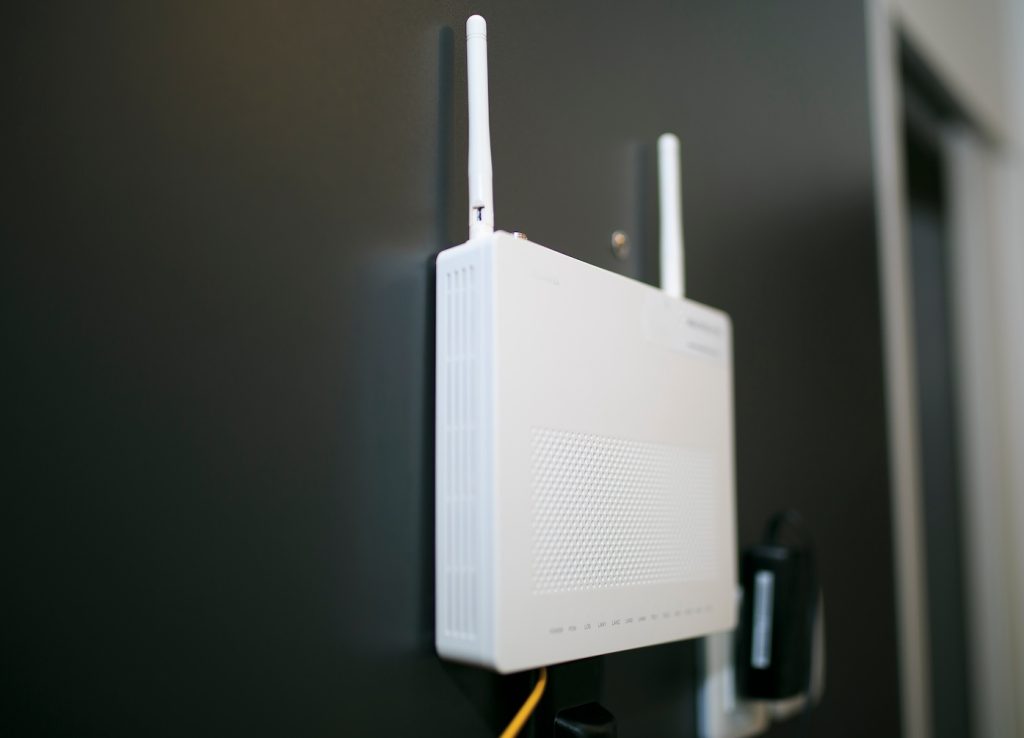
Knowing how to extend WiFi range with an extender involves latching onto your current router’s signal, then rebroadcasting it from another location.
Where to place a WiFi extender
Set up your extender halfway between your router and dead zone, not right where the dead zone begins. A good baseline: pick a spot where your extender gets two or three bars from your router.
When an extender works, and when it doesn’t
Extenders work well for single, well-defined trouble spots: a back patio, a detached garage, an upstairs bedroom, or a far home office. If your home has home WiFi dead zones spread across multiple floors or areas, layering extenders creates network management problems. In those cases, a mesh WiFi system is a better solution, but the mesh WiFi vs extender decision comes down to how many problem areas you’re dealing with.
Step 6: Consider Mesh WiFi or Upgraded Equipment if Problems Continue
Upgrading equipment is the most reliable path to better WiFi coverage throughout your home.
Signs your current router may be the problem
The router you’re using may be too old to handle today’s WiFi standards or device count. If you experience dropped connections frequently, your network speed slows to a crawl even when you’re right next to the router, or you just can’t seem to have more than one person/device using the network at a time without things feeling slow, upgrading from an older WiFi 4 (802.11n) router to WiFi 6 can help.
When mesh WiFi is better than an extender
Mesh systems are the better solution for larger homes, multi-story layouts, and households with many connected devices. See our comparison of WiFi 6 vs. WiFi 7 for context on what current hardware standards offer.
When your internet plan may be part of the issue
If speeds are slow even when you’re sitting next to the router, your internet plan may be the bottleneck rather than the signal. See our guide on gigabit internet speeds to see whether your current plan supports what your household actually needs.
A Simple How-To Process for Boosting Internet Signal at Home
Work through these steps in order before spending money on equipment:
1. Test where your signal is weakest
Walk room to room and check signal strength in each space, especially your home office, upstairs bedrooms, basement, and any outdoor areas you use regularly.
2. Move the router to a better location
Place it centrally, elevated, and away from obstructions. Retest the signal in the problem locations after moving it.
3. Remove obstacles and reduce interference
Clear the area around the router. Avoid enclosed furniture, large electronics, and metal objects in the signal path.
4. Switch between 2.4 GHz and 5 GHz based on distance
Use 5 GHz for nearby rooms and 2.4 GHz for distant areas, outdoor spaces, or connections through multiple walls.
5. Wire fixed, high-demand devices via Ethernet
Moving gaming consoles, desktop computers, and smart TVs to Ethernet frees up wireless bandwidth and improves WiFi quality for everything else.
6. Add an extender for a specific dead zone
Use an extender for one defined trouble spot, placed halfway between the router and the weak area, and not at the edge of coverage.
7. Upgrade to mesh or newer equipment if needed
When issues affecting multiple parts of the home or hardware are outdated, a mesh system or a newer router is the right next step.
Common Mistakes That Make Home WiFi Signal Worse
Keeping the router in a corner or basement
When a router is tucked away in the corner of your home, every other device in your home must connect to it and unfortunately they get the weakest signal. Moving just a few feet towards the center of your space can make a noticeable difference in usable coverage.
Hiding the router inside furniture
Anything that boxes in your router, such as nightstands, entertainment centers, closets, and bookshelves, is limiting its broadcast range.
Using only one band for every device
Many people connect everything to the same network SSID without differentiating 2.4 GHz from 5 GHz. Designating devices to connect to the appropriate band (5 GHz if they’re close to your router, 2.4 GHz if they’re far away) can have a surprisingly large impact on your entire home’s network performance.
Putting the extender in the wrong place
An extender placed at the edge of the router’s range rebroadcasts a poor signal and can be spotty and unreliable.
Expecting WiFi to do what Ethernet Should Handle
Some devices simply perform better on a wired connection. Expecting WiFi to deliver gaming-level performance at long range, or VoIP call quality through multiple walls, asks more than the technology is built to provide in those conditions. Wiring those devices directly is the correct solution.
When to Call Your Internet Provider for Help
Most of what it takes to improve internet signal in the house comes down to the steps covered above. Persistent weak signals throughout the entire home could indicate a failing router, modem issue, or problem with the line coming in. Strong signal but consistently slow speeds across the board may point to plan limitations, especially in households where multiple people are streaming, working from home, and gaming simultaneously.
For households where members work from home full time, unreliable internet directly affects productivity, and your provider can help assess whether your current setup and plan are matched to that demand through home internet optimization for multiple devices.
It’s also worth knowing that weather can affect internet performance in ways that have nothing to do with your in-home setup, an issue your provider can help identify if it’s contributing to the problem.
Improve Internet Signal Throughout Your Home with High Speed Internet
Boosting internet signals at home usually comes down to a handful of practical decisions: where you position the router, what obstacles you clear from its path, which band you use in each room, which devices you wire directly, and where you place a signal extender if needed.
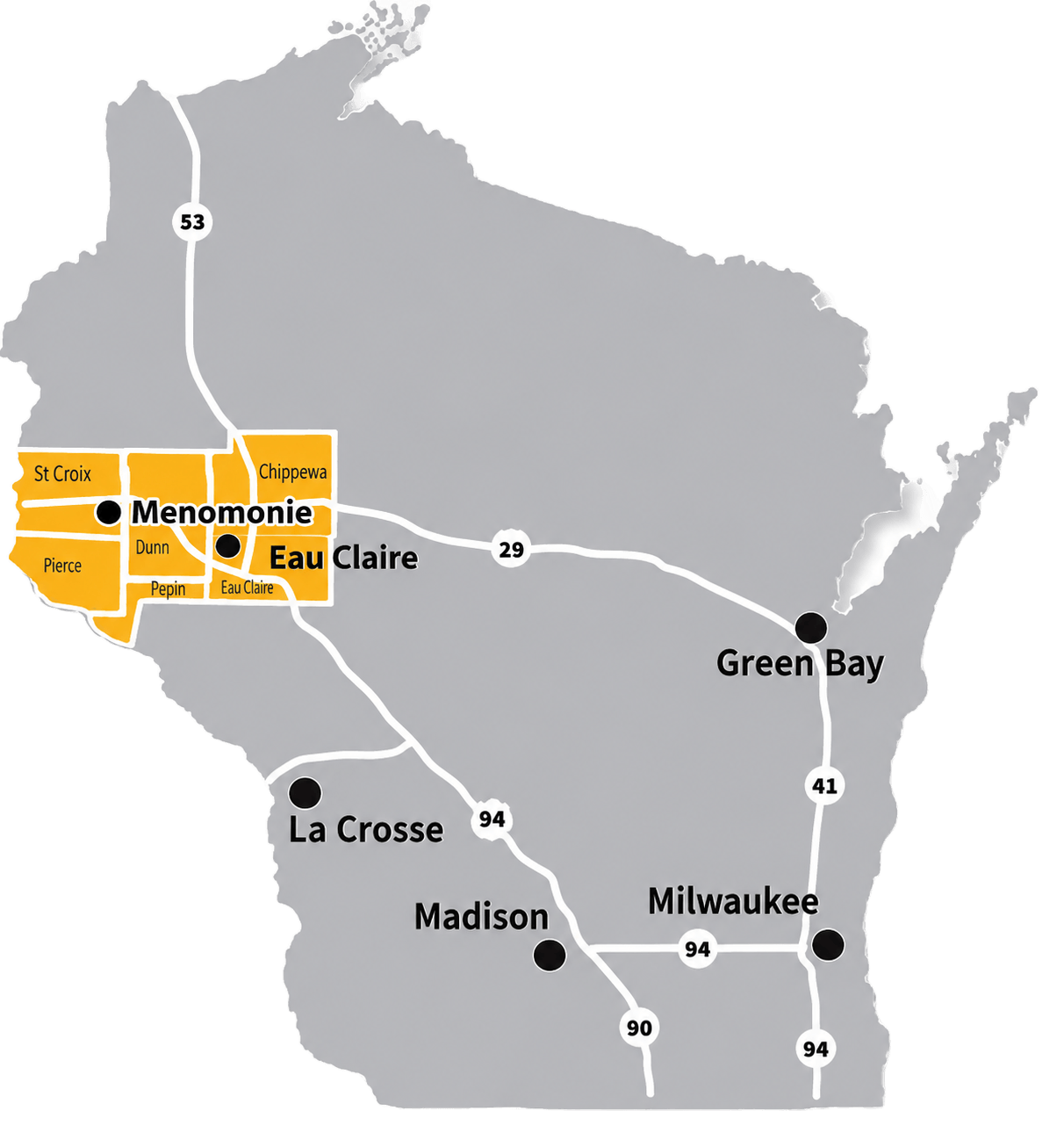
When basic fixes aren’t enough, the right equipment and the right internet plan make the difference. 24-7 & West Wisconsin Telcom offer high-speed internet and local support for households throughout the region.
Call today at 715.231.2000 or contact us to discover plan and service options available in your area.